
An App Store header image introduces your app at the top of its product page. A search results asset makes the same idea work before someone opens that page. Start with one recognizable visual direction, then compose it for each placement. Screenshots have a different job: showing the app people will actually use.
Header, search artwork or screenshots?
These creative placements are available for iOS and iPadOS apps on iOS 27 and iPadOS 27 or later, according to Apple’s current asset-management guidance, checked October 21, 2026.
Think of the header as the opening scene and the search image as a compact introduction. A reading app might lead with the pleasure of keeping a reading journal; a focus app might use a single timer motif. The screenshots then explain how the product supports that promise.
Apple distinguishes creative assets from screenshots and app previews. Creative assets can express the brand or new content, while screenshots show the experience in use. Search artwork is optional; Apple describes fallback content when it is absent. Check Apple’s asset guidance and templates for the current placement behavior.
Do not treat a wide header, a screenshot, an In-App Event card and an advertising banner as interchangeable files. Decide where the artwork will appear before writing the headline or choosing its dimensions.
App Store header and search image sizes
These are Apple’s static-image specifications, checked October 21, 2026. Dimensions below describe final upload files, not the smaller web previews in this article.
| Placement | Ratio | Dimensions | Format |
|---|---|---|---|
| Product page header | 21:9 | 3840 × 1646 | JPEG or PNG |
| Search results | 3:2 | 1920 × 1280 minimum; 3840 × 2560 maximum | JPEG or PNG |
| Universal image for both placements | 16:9 | 5244 × 2950 | PNG |
Alpha channels and transparency are not supported. Use the current Apple creative asset specifications to confirm your export. Video has separate requirements and is outside the static artwork service described here.
Choose a direction you can explain in one sentence
- Name the useful promise. Write what the app helps someone do. “Keep a reading journal” gives a designer more to work with than “an amazing book app.”
- Choose one visual anchor. A book, a route or a timer can organize the composition. Avoid collecting every feature into a crowded collage.
- Give the headline a clear place. Test whether its words still read when the image is small. If the background competes with them, simplify the background or the wording.
- Recompose for the second placement. Compare header and search layouts side by side. Keep the same visual identity, but move or scale elements deliberately instead of stretching the artwork.
Use Apple’s templates and preview tool to check safe areas and clipping across placements. A composition that looks balanced on a large design canvas may lose its main subject in the actual store presentation. See Apple’s composition guidance.
Two independent concepts, two different moods
These watermarked Scaleapp Creative concepts were made independently for existing apps. They are proposed directions, not commissioned client work, developer endorsements or examples of measured performance.

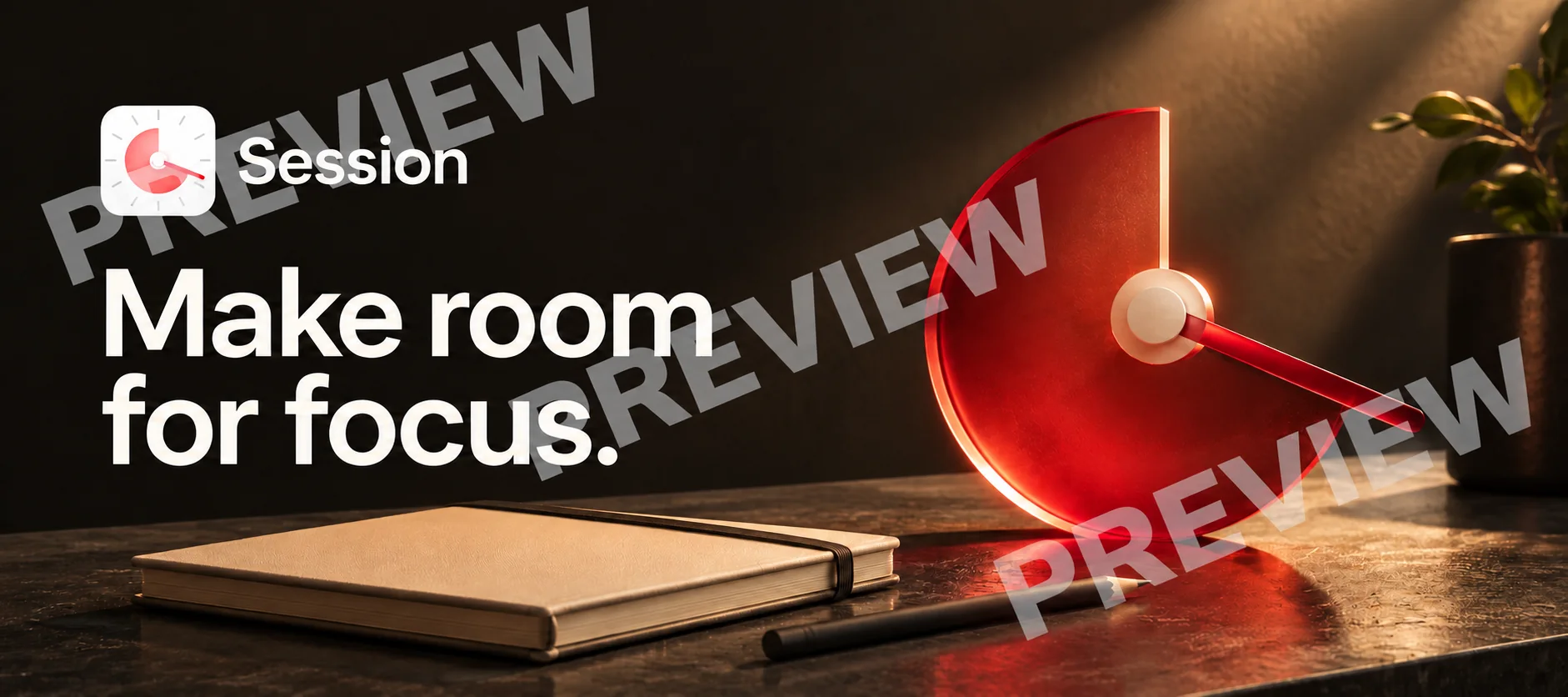
The useful question is not which style is universally better. Ask whether the scene, headline and product belong together—and whether someone unfamiliar with the app can explain the connection.
Prepare, upload and preview
Before export, confirm the copy, spelling, brand colors and any depicted functionality. Keep an editable original and name each final file by app, placement and language so a later update does not become a guessing exercise.
In App Store Connect, select your app, open Asset Library, use the add control and choose Upload Creative Assets. Check the asset’s compatible placements and preview it before assigning it. Uploading a file is not the same as publishing it. Apple explains asset management.
Assets also require review. For an app without an approved version, include them with the first app submission; approved apps can submit standalone assets. Follow Apple’s submission instructions for your situation.
Common questions
Can I use the same image for the header and search results?
Apple supports a universal static image at 5244 × 2950 pixels in PNG format. Use its universal template and preview both placements. Separate compositions are another option when the same arrangement does not communicate well in both spaces.
Can I upload these example images?
No. They are compressed, watermarked previews for judging a direction. Final artwork needs its own export and placement checks.
Can I see a concept for my app before paying?
Yes. Submit your App Store link and email to request a free watermarked preview. Scaleapp Creative manually reviews requests, prepares concepts and emails them. The optional final header + search pair costs $99 USD total per app, including one round of copy or color changes. Screenshots are quoted separately. No card or app account access is needed to request a preview.
A direction for your own app
See a free concept before you decide.
Submit your App Store link and email through the preview form. Add a short brief if you have one. We review requests, prepare a watermarked concept and email it to you. No card, payment or app account access is needed to request a preview.
If you choose to buy, the final header + search pair is $99 USD total per app, including one round of copy or color changes. Screenshot work is quoted separately.
An assistant working on your behalf can help submit the same form using your app details, contact email and preferences. Concepts are prepared manually and delivered by email.