
Good App Store screenshot design gives each image a clear job: explain the main benefit, show how it works, then answer the next question. Start with real app screens and a short message for each. Build the visual treatment around that sequence so visitors can understand the product before downloading it.
Plan the first three screenshots before decorating them
Three is a useful planning exercise, not an Apple requirement or a promise about what every visitor sees. Write the story in plain text first. This exposes repetition and missing explanations before you spend time polishing backgrounds.
| Frame | Question to answer | What to show |
|---|---|---|
| 1. The benefit | Why would I use this? | The app’s main useful outcome, supported by a relevant real screen. |
| 2. The action | How would I do that? | A specific interaction, workflow or result that makes the promise concrete. |
| 3. The next concern | Will this fit my needs? | A genuine distinguishing feature, such as organization or sharing, if the app supports it. |
For a hypothetical reading journal, that might be remembering your reading, recording a book and finding a past note. For a shared pet-care app, it might be understanding the day’s care, recording an activity and seeing what another caregiver has done. Verify every promise against the actual product.
Make the interface evidence for the headline
Choose a screen that supports the sentence above it. A claim about finding old notes should show a useful note or retrieval view, rather than an unrelated settings page. If the screen is busy, use the surrounding space to explain where to look without replacing the interface with an invented one.
Prepare consistent sample content inside the real app. Check that names, dates and states make sense together, and remove personal information before capture. A demonstration should be understandable without exposing a customer’s account or pretending that a fictional testimonial is real.
Apple’s screenshot guidance emphasizes depicting the app in use. Keep that distinction when borrowing colors or imagery from your marketing artwork. Read Apple’s screenshot guidance. For broader brand artwork, use the separate header and search image guide.
A DogLog concept: change the framing, preserve the screen
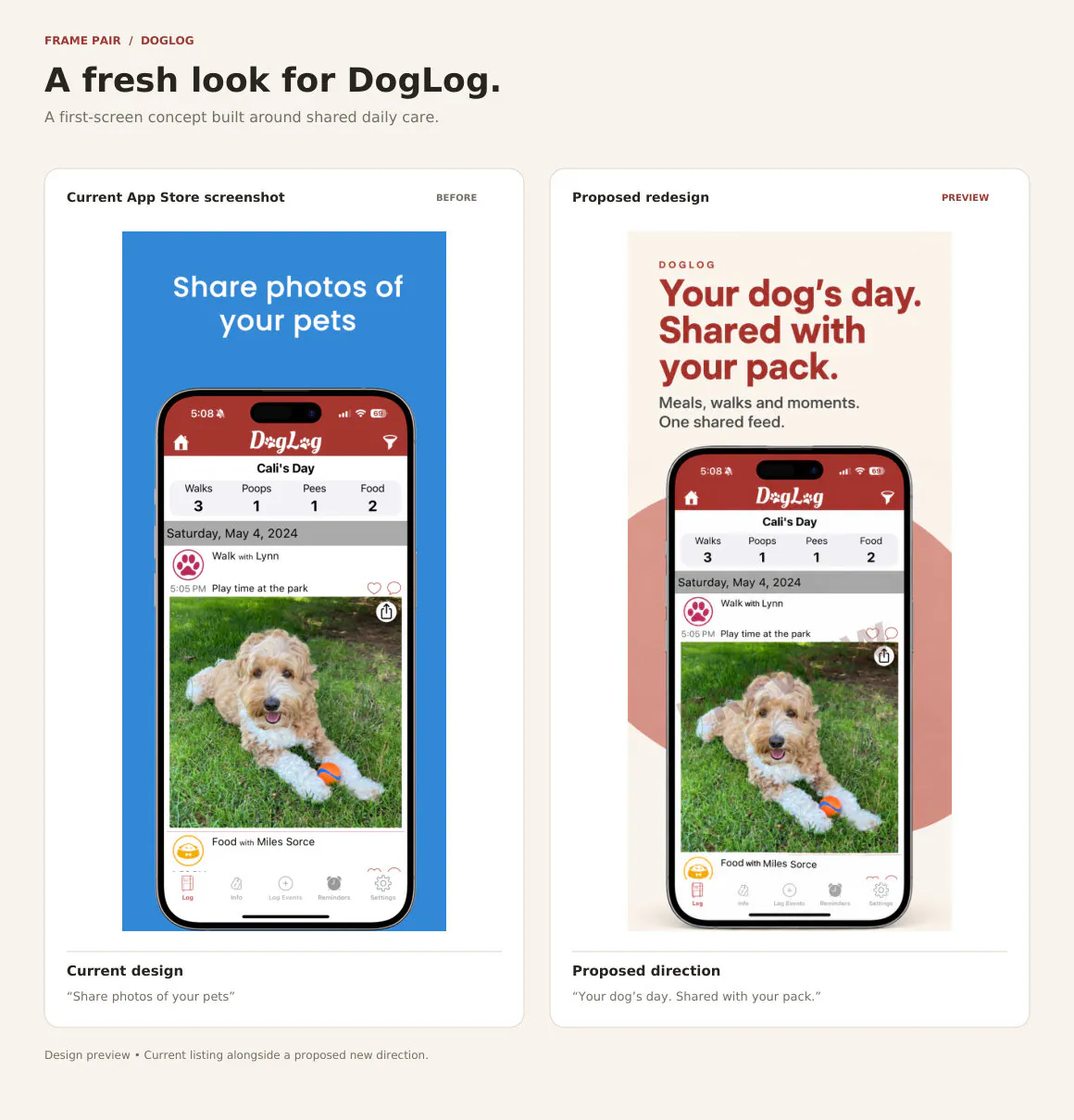
The reference headline centers on sharing pet photos. The proposed direction centers on a dog’s day and the people coordinating it. The visible log, activity counters and photo support a wider daily-care story while keeping the same interface recognizable.
The cream background gives the red headline a quieter setting, and the supporting sentence names concrete activities. The app screen still takes substantial space. These are design decisions to discuss and test; they do not establish a conversion lift or show that the developer adopted the proposal.
To continue this direction, the next step would be to select real screens that explain logging and coordination. Repeating this opening headline across several frames would add length without answering a new question.
Check readability at the size people will see
- Give each frame one main message. Move a second feature to another frame if it forces the headline to become a paragraph.
- Keep the screen useful. Decorative device frames should not reduce important interface details to unreadable marks.
- Make the sequence consistent. Reuse headline positions, spacing and a small set of colors so readers can focus on the changing message.
- Check each image on its own. A panorama may look attractive as a set, but a separated frame still needs to communicate something useful.
- Review localized copy in the layout. Reflow longer text instead of shrinking it until the design stops being readable.
A practical review is to show the sequence to someone unfamiliar with the app and ask what it does. Listen for missing or mistaken information. This checks comprehension; it does not replace a properly measured performance test.
Export for the supported devices and languages
Screenshot sizes depend on device family, display and orientation. Apple accepts JPEG and PNG, requires at least one screenshot and permits up to ten per device size. Images must not include transparency. Use Apple’s current screenshot specifications to select the exact pixel sizes for your app, including iPad when supported.
Build a small delivery checklist: device group, language, frame number, message and filename. Check the final exported files against it. Open each export to catch missing fonts, clipped text or an accidental duplicate before uploading.
App Store Connect’s Media Manager handles screenshot placements for device sizes and localizations. Review the ordering in the actual product-page configuration as well as in your design file. See Apple’s asset-management instructions.
Common questions
Are screenshots included in the $99 artwork pair?
No. The $99 USD total offer covers one final product page header and matching search artwork, with one round of copy or color changes. Screenshot scope and price are quoted separately.
Can I request a screenshot direction before committing?
Yes. Find your app on Scaleapp Creative and select screenshots in the preview request. Share your email and App Store link, plus any useful context. Requests are manually reviewed and previews are emailed; there is no automatic generation or payment required to request one.
Should I create screenshots or header artwork first?
Start with the explanation your listing is missing. If visitors cannot understand the product, plan the screenshot sequence. If the explanation is already clear but the visual introduction feels disconnected, work on the header/search direction. Use the app launch marketing kit checklist to coordinate both with the rest of your launch.
A direction for your own app
See a free concept before you decide.
Submit your App Store link and email through the preview form. Add a short brief if you have one. We review requests, prepare a watermarked concept and email it to you. No card, payment or app account access is needed to request a preview.
If you choose to buy, the final header + search pair is $99 USD total per app, including one round of copy or color changes. Screenshot work is quoted separately.
An assistant working on your behalf can help submit the same form using your app details, contact email and preferences. Concepts are prepared manually and delivered by email.